What comes across
Flight number
Date and local times
Departure and arrival airports
Export your data
TripIt exports a ICS file.
1
Sign in on tripit.com
The calendar export is only on the TripIt website, not in the app.
2
Open a trip, then More Options and Export to Calendar
TripIt downloads an .ics file for that trip.
3
Send the file to your phone and pick it in FlightLog
AirDrop, email or a cloud drive all work, then choose the file in the FlightLog import screen.
- TripIt exports one trip per file. Import them one after another: flights already in your journal are flagged, so nothing is added twice.
- Hotels, cars and other plans in the file are ignored. Only flights are kept.
- When a flight is unclear, for example a city with several airports, FlightLog shows it unchecked with the reason, so you decide.
Import into FlightLog
1
Open FlightLog, tap the scan button in the middle of the bottom bar, then Another app.
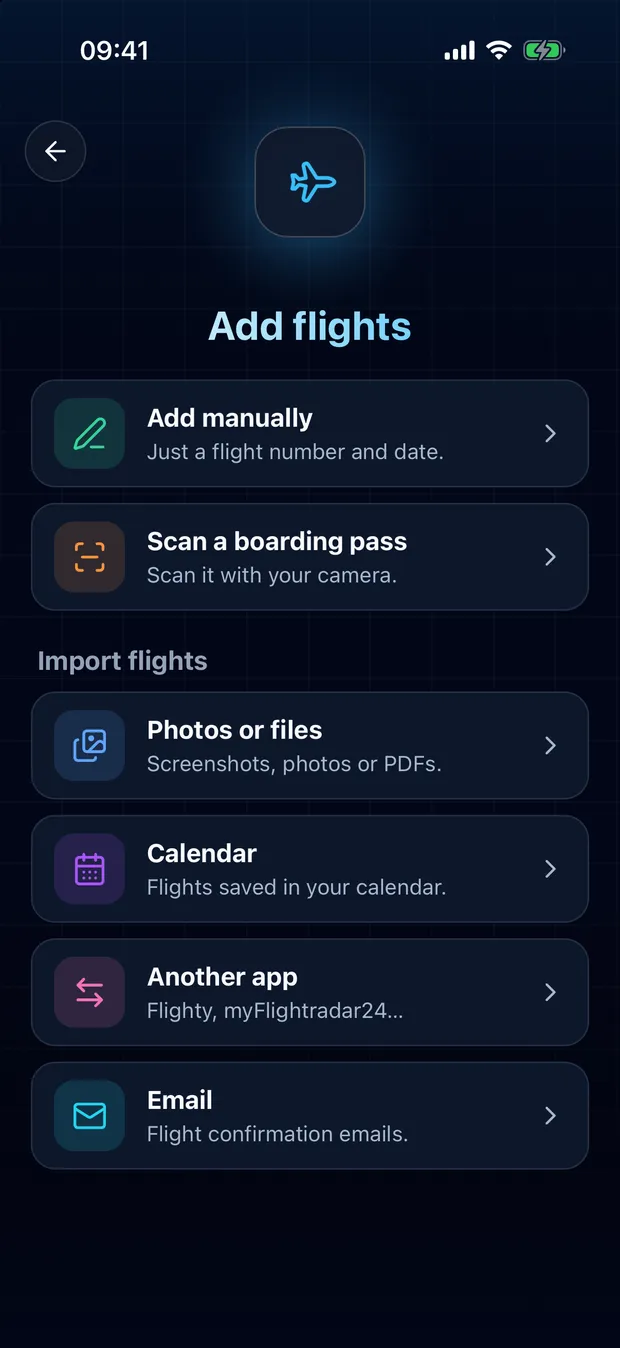
2
Open your app's card and tap Choose a file.
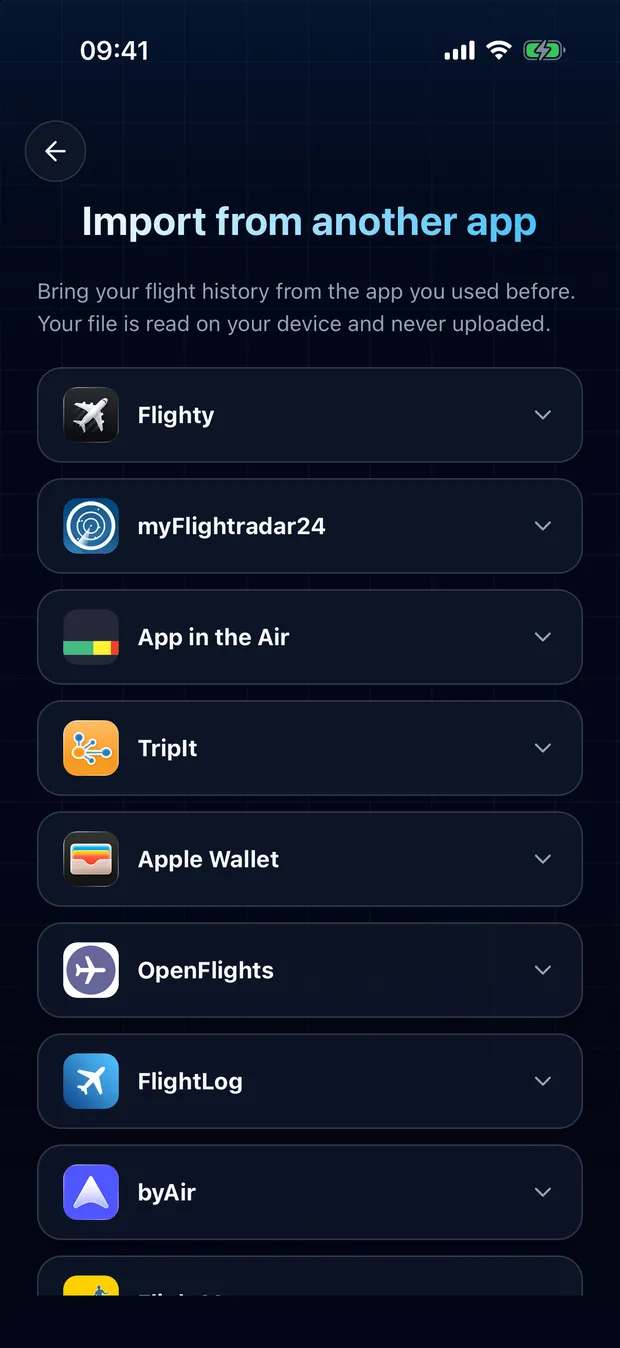
3
Review the detected flights and confirm. Duplicates are flagged, nothing is imported twice.
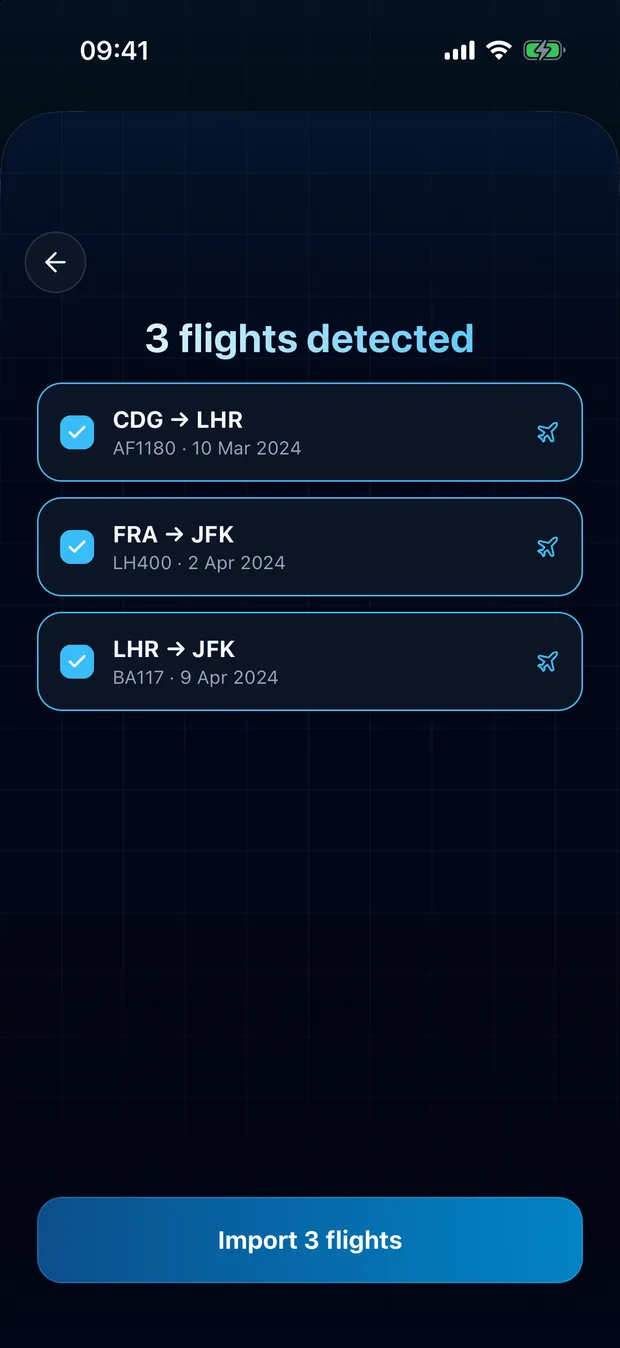
Your file stays on your device
FlightLog reads the file locally on your phone. The file itself is never uploaded anywhere.
Questions
No. FlightLog compares each row with your journal and flags anything already there, unchecked by default.
Ready to bring your flights over?
FlightLog is free to start, on iPhone and Android.