What comes across
Flight number and airline
Date and local times
Departure and arrival airports
Aircraft type
Cabin class
Seat
Export your data
App in the Air exports a TXT file.
1
Find the email App in the Air sent you
Before it closed in 2024, App in the Air emailed each export as a file called data.txt. Search your mailbox for it.
2
Save data.txt to your phone
Open the email on your phone and save the attachment to Files, so you can pick it in FlightLog.
- App in the Air could follow trips shared by friends. Only trips marked as yours are imported.
- Times are read in the local time of each airport, as the app showed them.
- Booking references and ticket numbers in the file are never imported.
Import into FlightLog
1
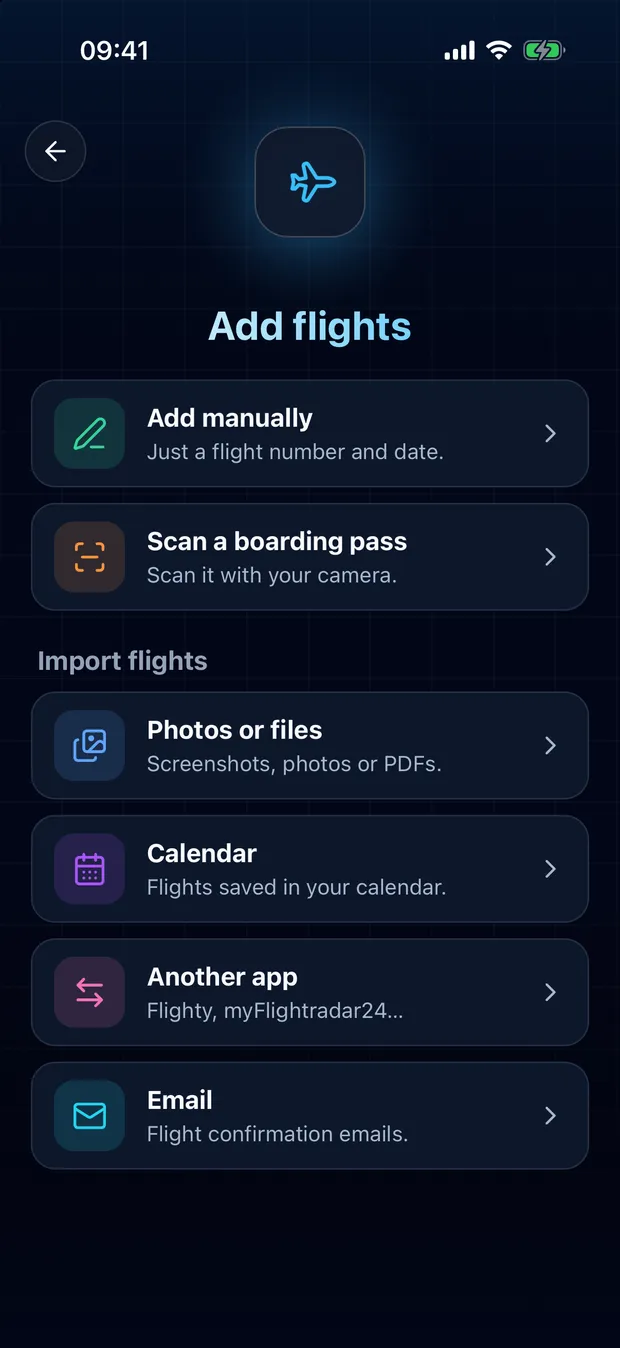
Open FlightLog, tap the scan button in the middle of the bottom bar, then Another app.
2
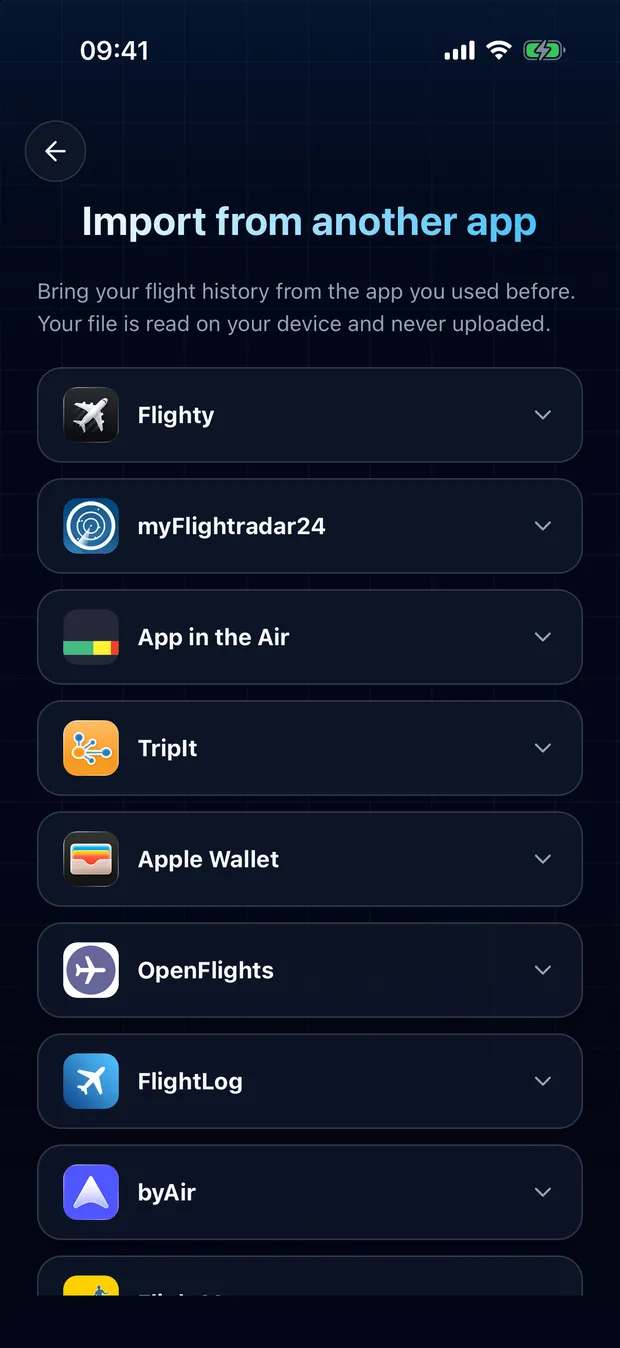
Open your app's card and tap Choose a file.
3
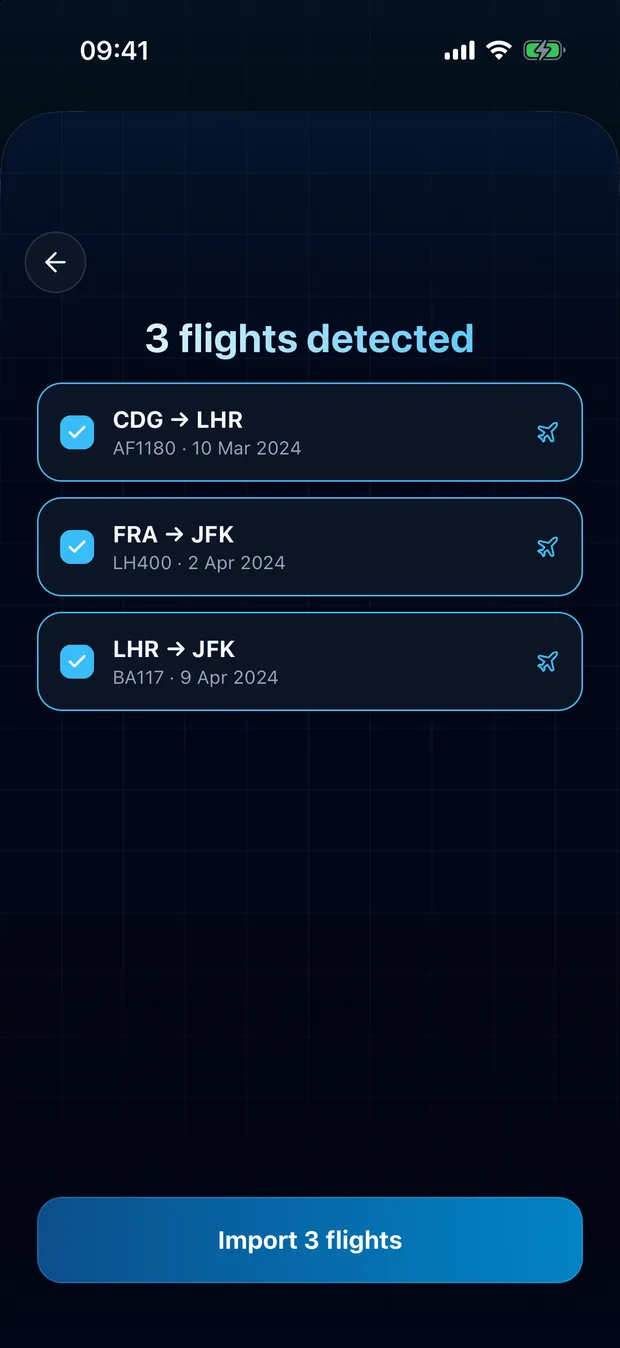
Review the detected flights and confirm. Duplicates are flagged, nothing is imported twice.
Your file stays on your device
FlightLog reads the file locally on your phone. The file itself is never uploaded anywhere.
Questions
No. FlightLog compares each row with your journal and flags anything already there, unchecked by default.
Ready to bring your flights over?
FlightLog is free to start, on iPhone and Android.