Step by step
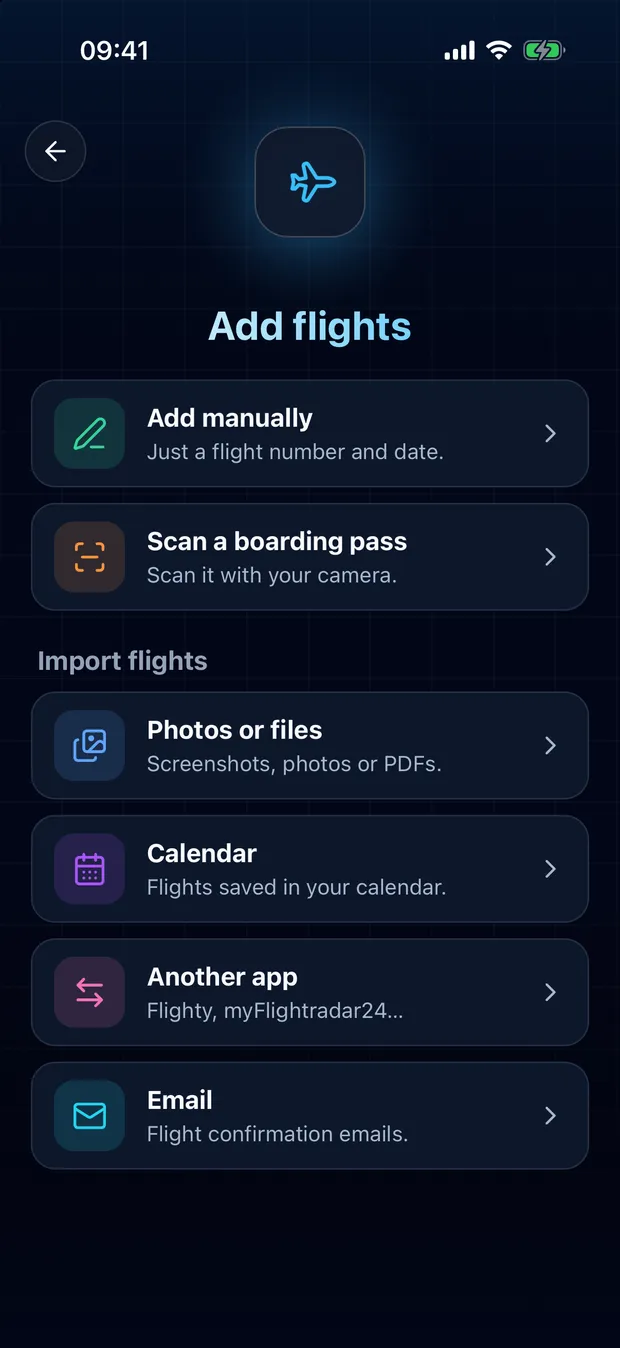
1
Tap the scan button, then Photos or files
To scan a paper pass with the camera, choose Scan a boarding pass instead.
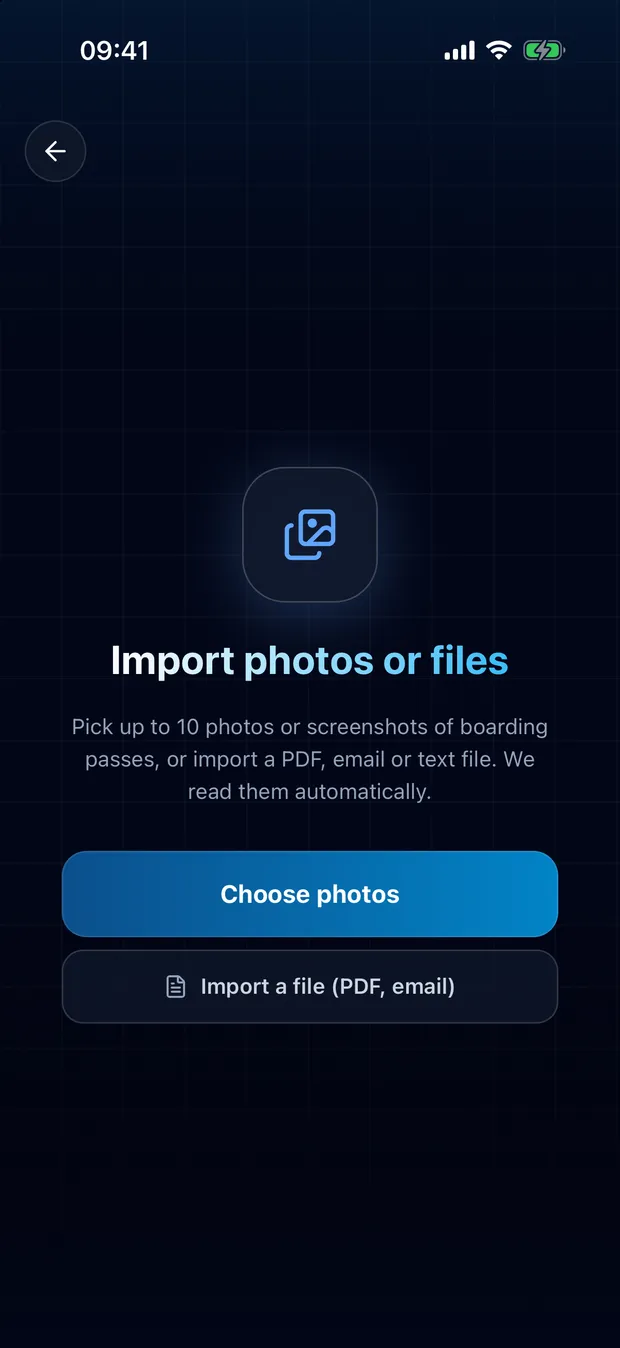
2
Choose your screenshots or photos
Select several at once. For a pass in Apple Wallet, open it in Wallet and take a screenshot first.
3
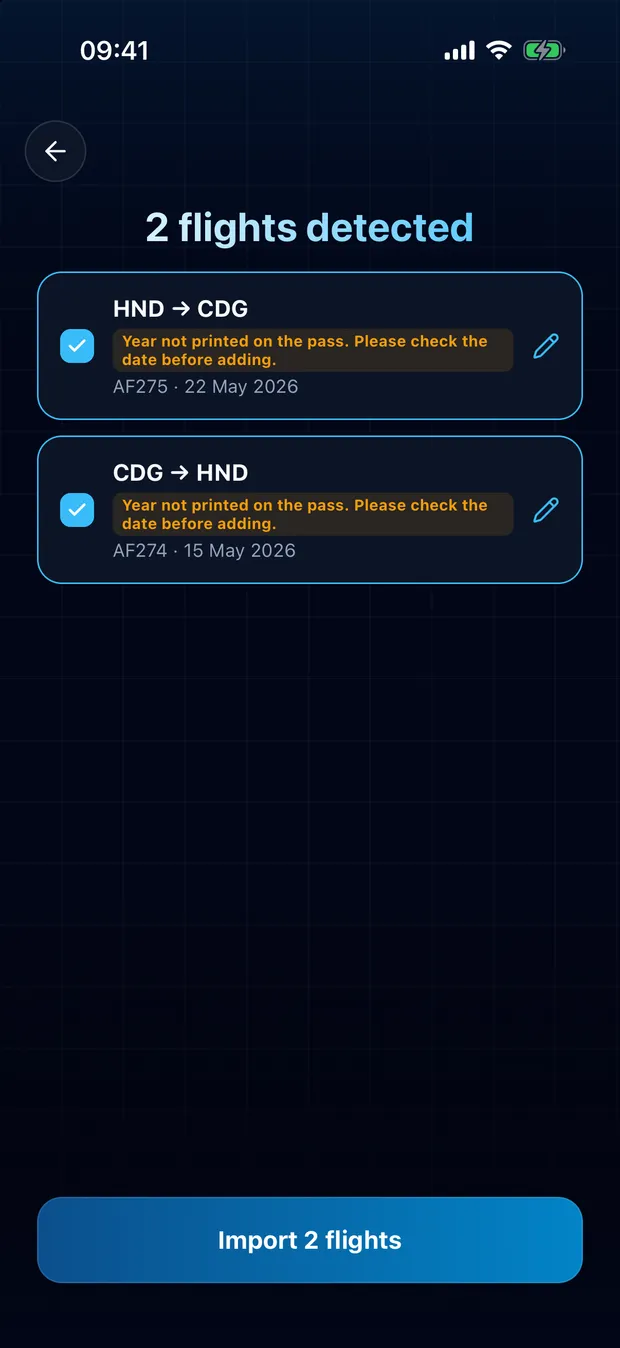
Check the flights found, then import
Flights already in your logbook are flagged, so nothing is added twice.
- The barcode on the pass gives the flight, the route and the seat. Old passes work too.
- When the year is not printed on the pass, FlightLog tells you so you can check the date.
- PDF boarding passes and confirmation emails saved as files work too.
Your privacy
To read your pictures, FlightLog sends them to its secure server. FlightLog does not keep them.
Questions
Yes. Wallet does not let other apps read its passes, so open the pass in Wallet, take a screenshot and add it here.
Ready to bring your flights over?
FlightLog is free to start, on iPhone and Android.